Automatically Tag Sold-Out Shopify Products Without Manual Work
The Task Nobody Wants to Repeat
Imagine a fashion store with 1,800 products.
Every product can have several combinations of size and color.
During the day, inventory keeps changing.
A black hoodie may sell out completely.
A blue jacket may still have one size available.
A dress that was sold out yesterday may receive new inventory this morning.
The merchandising team wants every fully unavailable product tagged:
sold-out
That sounds simple.
Until someone has to do it every day.
They open Shopify admin, check products one by one, inspect the variants, decide whether the entire product is really unavailable, add the tag, and repeat.
Then inventory returns.
Now they have to remember to remove the tag too.
For a small catalog, this may be manageable.
For hundreds or thousands of products, it becomes repetitive backend work that can quietly consume hours.
The difficult part is not adding a Shopify tag. It is continuously knowing which products should have that tag right now.
Why Sold-Out Tagging Gets Messy
A product does not always have one inventory number.
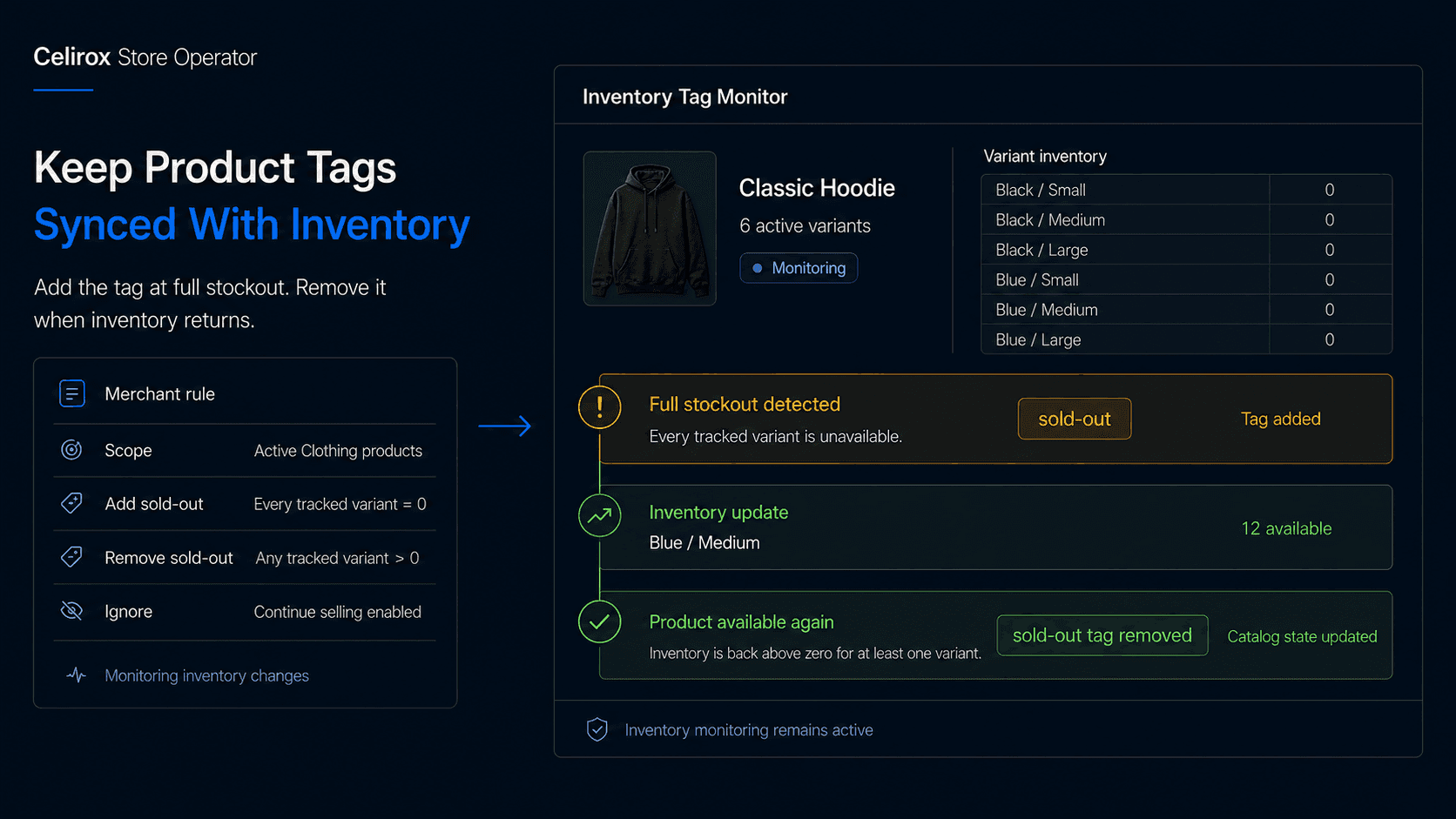
Consider a hoodie with these variants:
Black / Small: 0
Black / Medium: 0
Black / Large: 0
Blue / Small: 4
Blue / Medium: 2
Blue / Large: 0
Is the product sold out?
No.
Customers can still buy the blue variants.
Now imagine every variant reaches zero.
Only then might the merchant want to apply:
sold-out
That difference is important.
A workflow that looks only at one variant can incorrectly tag an entire product as unavailable.
The rule needs to match how the merchant defines a sold-out product.
For many stores, that means:
All relevant variants unavailable → Product considered sold out
The Manual Backend Process
Without an ongoing workflow, someone may handle the task manually.
The process often looks like:
Open product → Review variants → Check inventory → Decide status → Add tag → Save → Repeat
Then the same work happens in reverse after a restock.
Imagine doing that across 300 products after a busy weekend.
Even if each check takes only a short time, the work adds up.
It also creates consistency problems.
One employee may tag a product immediately.
Another may wait until the next morning.
A third may forget to remove the tag when stock returns.
Now the tag no longer represents the actual inventory state.
That can affect any collection, report, merchandising rule, or storefront logic that depends on it.
Build It Through Chat
With Celirox Store Operator, the merchant can describe the backend task they want in plain English.
For example:
"Check my products regularly. When every active variant of a product has zero available inventory, add the tag sold-out. If any active variant comes back in stock, remove the sold-out tag."
The workflow becomes:
Check inventory → Evaluate variants → Determine product state → Update tag → Continue monitoring
The merchant defines the condition.
Store Operator handles the repetitive checking and corresponding store action.
The instruction can also be made more specific.
For example:
"Only run this for products in the Clothing collection."
Or:
"Use the tag restock-needed instead of sold-out."
Or:
"Do not include archived products."
The point is not to create a complicated automation builder.
The merchant describes the operational rule they already follow manually.
Check Every Relevant Variant
Variant logic is the most important part of this use case.
Suppose a shoe has:
Size 8: 0
Size 9: 0
Size 10: 3
Size 11: 0
A shopper can still buy Size 10.
The product should not automatically receive a fully sold-out tag if the merchant's rule is based on total availability.
The workflow therefore needs to evaluate the relevant variants together.
A useful condition might be:
If every active sellable variant has available inventory of 0 → Add sold-out
Then:
If at least one active sellable variant becomes available → Remove sold-out
This sounds small, but it prevents a common catalog mistake.
The backend status should describe the whole product accurately.
Not whichever variant happened to be checked first.
Use Tags for Real Operations
A sold-out tag can do more than make Shopify admin easier to scan.
Once the status is reliable, the merchant can use it as an input to other store operations.
For example:
- Create an internal sold-out product view
- Build a restock-needed collection
- Prioritize products for purchasing review
- Trigger a back-in-stock workflow
- Support storefront merchandising rules
- Help staff find unavailable products quickly
Imagine the merchandising team starts every morning by opening:
Products tagged: restock-needed
Instead of checking the entire catalog, they immediately see products that currently need attention.
The tag becomes useful because the workflow keeps it current.
A stale tag is just another field someone has to verify manually.
Remove Tags After Restock
Adding the tag is only half the workflow.
Suppose a product sells out on Monday.
The tag is added:
sold-out
On Wednesday, the warehouse receives 50 units.
Inventory is updated.
If the tag remains, other systems or staff may still treat the product as unavailable.
That is why the reverse condition matters just as much:
Inventory returns → Recheck product → Remove sold-out tag
The backend task should maintain the product state in both directions.
This is what makes the workflow different from a one-time bulk edit.
A bulk edit solves today's catalog.
Continuous monitoring keeps tomorrow's catalog correct too.
Handle Inventory Edge Cases
Not every Shopify catalog uses inventory in exactly the same way.
Some products may have variants that are intentionally not tracked.
Some may continue selling after inventory reaches zero.
Others may be archived, draft, seasonal, or intentionally unavailable.
That means the merchant should define what counts as "sold out" for their store.
For example:
Only evaluate active products
Ignore variants that are not inventory-tracked
Do not tag products configured to continue selling when out of stock
The exact rule depends on the merchant's catalog model.
The important thing is to avoid treating:
inventory = 0
as the only piece of business context.
A product can have zero tracked inventory and still be intentionally sellable.
The backend rule should reflect the merchant's real selling configuration.
Keep the Rule Understandable
Backend workflows can become unnecessarily complex if every catalog exception becomes another condition.
Start with one clear rule.
For example:
All active tracked variants unavailable → Add sold-out
Any active tracked variant available → Remove sold-out
Then add exceptions only when the store genuinely needs them.
Before enabling the workflow, test:
- Fully available product
- Partially sold-out product
- Fully sold-out product
- Product that receives a restock
- Product with several variants
- Product with untracked inventory
- Archived or draft product
The objective is not to build the most sophisticated inventory rule.
It is to eliminate a repetitive manual task without creating incorrect product states.
Measure the Time Saved
This type of backend workflow should not be judged by storefront conversion alone.
Its main value is operational.
Useful measurements can include:
- Products checked manually before the workflow
- Tag updates performed automatically
- Incorrect sold-out tags found
- Products missing the expected tag
- Time spent on catalog maintenance
- Restocked products whose tags were removed correctly
Imagine an employee previously reviewed 400 products every Monday morning.
After the workflow is enabled, they instead review only exceptions or products needing purchasing decisions.
That is a meaningful improvement.
The goal is not merely:
We added 73 tags automatically
It is:
The catalog now stays current without someone repeatedly checking the same inventory state by hand.
Frequently Asked Questions
Can Shopify products be tagged when they sell out?
Yes. Shopify product tags can be used to label products according to merchant-defined workflows. The important part is deciding exactly when a product should count as sold out.
Should a product be tagged sold out when one variant reaches zero?
Usually not if other variants remain purchasable. The merchant should define whether the tag represents one unavailable variant or the entire product being unavailable.
Can the sold-out tag be removed automatically after restocking?
Yes. A continuous workflow can recheck the product when inventory changes and remove the tag when the merchant's availability condition is satisfied again.
Can I use a different tag such as restock-needed?
Yes. The tag name should match the merchant's internal workflow. It could be sold-out, restock-needed, purchasing-review, or another defined label.
What if a product is allowed to sell below zero inventory?
That should be considered when defining the rule. A zero inventory value does not necessarily mean the product should be treated as unavailable if the store intentionally allows continued selling.
Can this apply only to certain products?
Yes. The merchant can define scope such as selected collections, product types, vendors, or other relevant product conditions.
Can Celirox Store Operator manage this backend task?
Yes. Merchants can describe the tagging condition in plain English, and Store Operator can help monitor the relevant product state and apply or remove tags according to the defined rule.
Stop Checking Products Manually
A Shopify tag takes only seconds to add.
The expensive part is repeatedly figuring out whether the tag should be there.
For a large catalog, that means reviewing inventory, checking variants, updating products, and repeating the same work whenever stock changes.
That is exactly the kind of backend task that should not depend on someone remembering to do it every day.
A simple operating rule can replace the repetitive checking:
Monitor variants → Detect full stockout → Add tag → Detect restock → Remove tag
Celirox Store Operator helps merchants turn that rule into an ongoing Shopify backend task through conversation, so product tags reflect the current inventory state without requiring someone to maintain them manually across the catalog.