They Reached Checkout. But They Want to Change the Size.
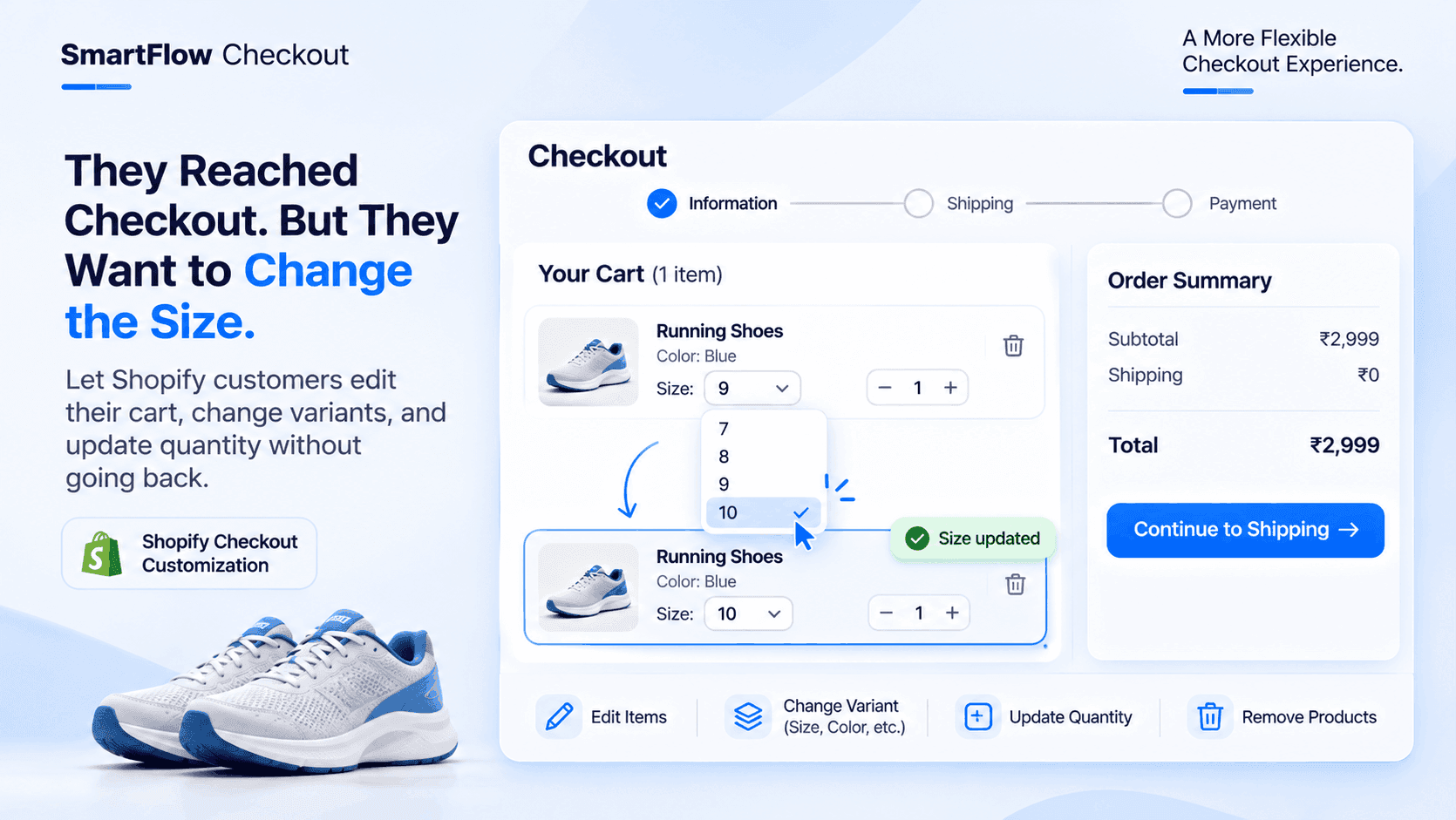
The customer has found the running shoes they wanted.
They selected their preferred color.
They chose size 9.
They added the shoes to their cart and proceeded to checkout.
They entered their email address and started filling in their delivery information.
Then they noticed something.
They actually need size 10.
The product is correct.
The color is correct.
They simply selected the wrong size.
Now they need to go back to the cart, find the shoes, change the variant and return to checkout.
It isn't a complicated correction.
But the customer has to interrupt the process just to fix one small detail.
What if they could make that change directly at checkout?
The Customer Hasn't Changed Their Mind
There is an important difference between a customer abandoning a purchase and a customer wanting to correct something in their cart.
The customer buying the running shoes still wants them.
They aren't reconsidering the purchase.
They aren't looking for another product.
They simply need a different size.
But the standard shopping journey can make this small correction feel like another task.
The customer may need to return to the cart, locate the correct product, change the selected variant and move through checkout again.
The purchase itself hasn't become more complicated.
The process of correcting the cart has.
Small Cart Mistakes Happen At The Last Moment
Customers don't always notice every detail when they first add a product to their cart.
They may be comparing several products.
They may select a size quickly and continue shopping.
They may decide that one item isn't needed after reviewing the order summary.
They may want two units instead of one.
These are normal shopping decisions.
Consider a clothing store selling a popular cotton shirt.
A customer adds one shirt in size Medium.
At checkout, they review the order and realize that size Large would be a better fit.
Another customer notices that they added two shirts but only need one.
Someone else wants to remove an item they added earlier.
None of these customers necessarily wants to leave the purchase process.
They just want the contents of their cart to be correct before paying.
The Cart Shouldn't Feel Locked Too Early
The cart is where customers initially organize their purchases.
Checkout is where they review the order and complete the transaction.
But reviewing an order can reveal details that weren't obvious when the customer first added the products.
They may notice the wrong variant.
They may reconsider the quantity.
They may decide that an additional product isn't necessary.
If checkout doesn't provide a convenient way to make supported changes, the customer has to return to an earlier stage of the shopping journey.
For the merchant, this is an opportunity to make the checkout experience more flexible.
The customer should be able to correct eligible cart details without unnecessarily restarting the process.
Let Customers Make Changes Directly At Checkout
Imagine the running shoe customer again.
They reach checkout and review their order.
The product summary shows:
Product: Running Shoes
Color: Black
Selected size: 9
Quantity: 1
The customer realizes the size is incorrect.
Instead of returning to the cart page, they can use the available cart controls directly within checkout.
They select size 10.
The cart reflects the updated variant.
The customer can continue reviewing the order and proceed with the purchase.
The correction happens where the customer noticed the problem.
That is the important difference.
What Can Customers Change?
A checkout cart experience can support several types of corrections.
Change Product Variants
A customer may select the wrong size, color or another available product variant.
For example, someone buying a pair of running shoes may realize they need size 10 instead of size 9.
The customer can make the supported variant change directly within the checkout cart.
Update Product Quantity
A customer may initially add one product but decide they need two.
Another customer may notice that they accidentally added an extra unit.
Allowing quantity changes at checkout makes it easier to correct these decisions before completing the purchase.
Remove Unwanted Products
Customers sometimes reconsider individual items while reviewing their order.
They may have added an accessory that they no longer need.
Removing that item directly from the checkout cart helps keep the order accurate.
Edit Cart Items
The overall purpose is to let customers manage eligible cart items without returning to the original cart page for every correction.
The merchant can configure which changes are permitted rather than treating every checkout as an unrestricted editing experience.
A Different Customer, A Different Correction
Consider a customer buying a laptop and a laptop bag.
They add both products to their cart.
At checkout, they review the order and realize that they selected the wrong laptop bag color.
They want the black version instead of the grey one.
Another customer buying a pack of storage containers notices that they need two packs instead of one.
A third customer decides to remove an accessory before paying.
These situations have something in common.
The customer is already at checkout, but the order details still need a small correction.
The store doesn't need to treat every correction as a reason for the customer to leave checkout and start again.
A configurable Custom Cart experience can make these changes part of the checkout journey.
Merchants Still Need Control Over Cart Changes
Giving customers more flexibility doesn't mean allowing every possible change without restrictions.
Merchants may have specific reasons to control what customers can edit.
For example, a store running a limited-time promotion may want to restrict quantity changes under certain conditions.
A product bundle may have purchasing requirements that should remain consistent.
A merchant may also want to prevent cart modifications when a particular condition is met.
That is why cart editing should be configurable.
The customer gets flexibility where the merchant allows it.
The merchant retains control over the checkout experience.
Configure When Cart Changes Are Allowed
Not every cart needs to behave the same way.
Imagine a store running a Black Friday promotion.
The merchant wants customers to be able to review and modify their normal shopping carts.
However, when a particular discount code is applied, the store may want to restrict quantity editing to protect the promotion's purchasing conditions.
A conditional cart configuration can help define when certain modifications are allowed.
The merchant can configure the relevant conditions instead of applying the same editing behavior to every checkout situation.
The important point is that checkout flexibility doesn't have to mean giving up control.
How SmartFlow Checkout Helps Customers Edit Their Cart
Shopify merchants can use checkout customization to make the purchase experience more flexible.
SmartFlow Checkout provides a Custom Cart component that allows customers to make supported cart changes directly within checkout.
Merchants can configure options that allow customers to:
- Edit cart items.
- Remove products from the cart.
- Change product variants.
- Update product quantities.
The component also supports configuring a minimum cart quantity required before allowing checkout changes.
Merchants can configure conditions to control when cart modifications are allowed.
For the running shoe store, the experience can be straightforward.
The customer selects size 9 and proceeds to checkout.
They notice the size is incorrect.
They use the available cart controls to select size 10.
The cart reflects the change.
They review the updated order and continue.
The customer doesn't need to return to the cart page just to make that correction.
The Workflow In Practice
Let's look at the complete customer journey.
Step 1: Customer adds a product
The customer selects the running shoes, chooses a size and adds them to the cart.
Step 2: Customer reaches checkout
The checkout displays the products and order details for review.
Step 3: Customer notices a mistake
They realize that size 9 isn't the correct choice.
Step 4: Customer edits the cart
The configured Custom Cart component allows the customer to make the supported variant change directly within checkout.
Step 5: Customer reviews the updated order
The customer checks the revised product details and continues with the purchase.
The process is simple.
The customer notices a problem and has a way to correct it without unnecessarily leaving checkout.
What Merchants Should Consider Before Enabling Cart Editing
A flexible checkout should still reflect the store's actual purchasing requirements.
Before enabling cart changes, merchants should consider a few things.
1. Decide Which Changes Customers Can Make
Think about the types of corrections customers commonly need.
Some stores may want variant changes and quantity updates.
Others may also allow customers to remove products.
Configure the options according to the store's requirements.
2. Set Appropriate Conditions
Some products or promotions may require specific cart rules.
Review whether certain changes should be restricted in particular situations.
3. Consider Minimum Cart Quantity
The Custom Cart component supports a minimum cart quantity setting before checkout changes are allowed.
Merchants should configure this according to their purchasing requirements.
4. Review The Customer Experience
A cart editing feature should be easy to understand.
Customers should be able to identify which product they are changing and review the updated order details.
5. Test Different Cart Scenarios
Test variant changes, quantity updates and product removal with representative products.
Also verify how configured conditions affect the available cart actions.
This helps merchants confirm that the checkout behaves as expected before making the experience available to customers.
An Important Shopify Checkout Requirement
SmartFlow Checkout's Custom Cart is a visual checkout extension component.
Shopify Plus is required to use these visual UI checkout components.
Merchants should confirm their Shopify plan and checkout extension eligibility before configuring the component.
This requirement is different from SmartFlow's separate payment customization, delivery customization and validation features, which are available across supported Shopify plans.
Frequently Asked Questions
Can customers edit their cart directly at Shopify checkout?
Yes. SmartFlow Checkout's Custom Cart component allows customers to make supported cart changes directly within checkout, without returning to the cart page.
Can customers change product sizes during Shopify checkout?
Yes. The Custom Cart component supports changing product variants, allowing customers to select another available variant when the merchant has enabled the relevant functionality.
Can customers update product quantities at checkout?
Yes. SmartFlow Checkout's Custom Cart supports quantity updates directly within checkout, subject to the merchant's configuration and conditions.
Can customers remove products from their checkout cart?
Yes. The Custom Cart component supports removing cart items, allowing customers to remove products they no longer want before completing the purchase.
Can merchants control which cart changes are allowed?
Yes. Merchants can configure the available cart editing options and set conditions that control when cart modifications are permitted.
Can merchants set a minimum cart quantity for editing?
Yes. SmartFlow Checkout's Custom Cart includes a minimum cart quantity setting that merchants can configure before allowing checkout changes.
Does SmartFlow Checkout Custom Cart require Shopify Plus?
Yes. Custom Cart is a visual checkout extension component. Shopify Plus is required for these visual checkout components in SmartFlow Checkout.
Do customers need to return to the cart page to change a product variant?
When the Custom Cart component is enabled and the relevant changes are permitted, customers can change supported product variants directly within checkout instead of returning to the cart page.
The Customer Still Wants The Product. Let Them Fix The Cart.
The customer reached checkout because they wanted to buy the running shoes.
They didn't suddenly lose interest.
They didn't decide to abandon the purchase.
They simply noticed that the selected size was wrong.
A small correction shouldn't have to become an unnecessary interruption in the shopping journey.
With SmartFlow Checkout's Custom Cart component, eligible Shopify merchants can give customers a way to edit items, change variants, update quantities and remove products directly within checkout.
The merchant decides which changes are permitted.
The customer gets a more flexible way to review the order before paying.
And the checkout experience can feel more forgiving when someone notices a small mistake.
The customer shouldn't have to leave checkout just because they want to change size 9 to size 10.