The Spreadsheet Is Updated. But Nobody Told the Person Who Needs It.
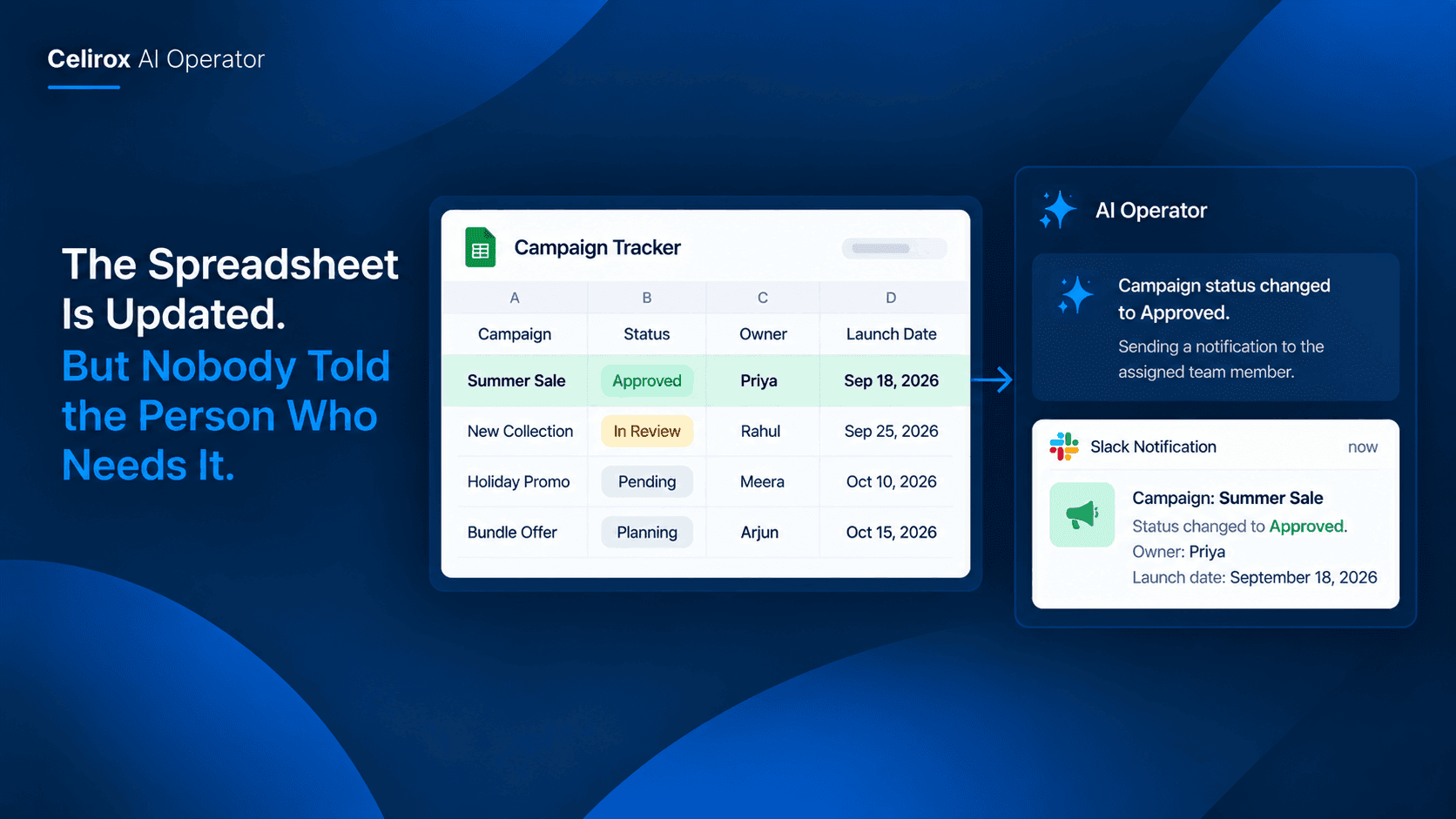
The spreadsheet was updated.
The person who needed that update just did not know about it.
So they opened the sheet again.
Then again later.
Someone eventually sent a message:
"Hey, I updated the campaign status. You can start now."
It took less than a minute to send that message.
But the same thing happens every day across teams.
A spreadsheet changes.
Someone needs to notice.
Someone needs to tell the right person.
And everyone assumes somebody else has already done it.
The Update Is Not The Problem
Most teams are perfectly capable of keeping a spreadsheet updated.
A sales tracker gets changed.
A campaign moves from pending to approved.
A project status changes.
A client row gets updated.
A task becomes ready for the next team.
The spreadsheet itself is doing its job.
The problem starts after the update.
The person responsible for the next step may not know that anything changed.
They are not necessarily ignoring the spreadsheet.
They may simply have ten other things to work on.
So they keep checking.
That is where a very small administrative task starts turning into wasted time.
Someone Has To Notice
Consider a marketing team preparing campaigns.
They keep a shared spreadsheet with columns such as campaign name, owner, status, launch date, and approval.
The campaign manager updates a row from:
"Waiting for Approval"
to:
"Approved"
That change is important.
The person responsible for launching the campaign can now move forward.
But the spreadsheet does not automatically make sure that person notices.
Someone has to remember to send a message.
Sometimes they do.
Sometimes they assume the other person is watching the sheet.
Sometimes the launch happens hours later because nobody noticed the status had changed.
The information was available.
The handoff was missing.
Why Teams Keep Checking Sheets
Shared spreadsheets create a strange workplace habit.
Everyone knows where the information lives.
So instead of creating a notification for every possible change, people simply tell each other:
"Just keep an eye on the sheet."
That sounds reasonable.
Until the sheet becomes important enough that people have to check it several times a day.
Now you have employees repeatedly opening the same document just to find out whether something changed.
Most of those checks produce nothing.
No new approval.
No changed status.
No new assignment.
Nothing that requires action.
The team is spending time checking for a change instead of responding to a change.
Not Every Change Matters
This is an important distinction.
A useful workflow should not notify people about every single spreadsheet edit.
Imagine someone correcting a spelling mistake.
Or changing a note.
Or updating an internal comment.
Nobody needs a notification for that.
The useful trigger is a meaningful change.
For example:
A campaign changes to "Approved."
A project changes to "Ready for Review."
A customer request changes to "Escalated."
A sales opportunity changes to "Won."
A task changes to "Ready."
Those changes have consequences.
They mean someone else can now do something.
That is where an automated notification becomes useful.
Turn The Change Into A Handoff
The real workflow is not:
"Someone edited a spreadsheet."
It is:
"Something important changed, and another person needs to know."
That difference makes the automation much more practical.
Imagine a project tracker.
A designer finishes a deliverable and changes its status to "Ready for Review."
The next person in the process is the project manager.
Instead of asking the project manager to repeatedly check the spreadsheet, the workflow can recognize the meaningful status change and send the relevant notification.
The spreadsheet remains the source of the information.
The notification simply moves that information to the person who needs to act on it.
Keep The Message Useful
An automated notification can become annoying if it simply says:
"Something changed in the spreadsheet."
That forces the recipient to open the sheet and figure out what happened.
A better notification gives enough context to make the next step obvious.
For example:
"Campaign: Summer Sale
Status changed to Approved.
Owner: Priya
Launch date: September 18."
Now the recipient knows what changed and why they are being notified.
They can open the spreadsheet if they need more information, but they do not have to investigate just to understand the notification.
Good automation should remove investigation, not create another notification to investigate.
Let AI Operator Handle The Routine
This is where AI Operator becomes useful for everyday team coordination.
Instead of relying on employees to constantly watch a spreadsheet and manually send updates, you can build a workflow around the event that actually matters.
The basic process is straightforward:
- A team member updates the spreadsheet.
- A meaningful change occurs.
- AI Operator handles the workflow connected to that change.
- The relevant person receives the information they need.
- The next step can happen without someone manually coordinating the handoff.
The value is not in sending more notifications.
It is in connecting an existing business update to the action that normally follows it.
Start With One Important Sheet
You do not need to automate every spreadsheet your company uses.
Start with one that regularly causes people to ask:
"Has this been updated yet?"
That question is usually a strong signal.
Maybe it is your campaign tracker.
Maybe it is a client onboarding sheet.
Maybe it is a project status tracker.
Maybe it is a sales pipeline.
Find the spreadsheet where people are repeatedly checking for changes or manually telling one another about updates.
Then identify one change that genuinely matters.
For example:
"When the campaign status becomes Approved, tell the launch manager."
That is much better than trying to automate an entire spreadsheet at once.
Make The Right Person Notice
The goal of the workflow is not to make everyone more informed.
It is to make the right person informed at the right moment.
If a sales spreadsheet changes, the whole company probably does not need to know.
If a campaign is approved, the finance team may not need a message.
If a project is ready for review, the person responsible for reviewing it does.
That keeps the workflow focused.
The spreadsheet can remain shared and accessible to everyone who needs it.
The automated notification simply removes the need for every person to keep checking it.
Replace The "Did You See It?" Message
There is a very common message in workplaces:
"Did you see the update?"
It sounds harmless.
But it represents a missing connection between two parts of the workflow.
One person completed their part.
The next person is waiting.
The information exists.
Nobody is sure whether it was noticed.
So someone sends a message to confirm.
Then another message might follow:
"Yes, I saw it."
That entire conversation exists because the system relies on people remembering to communicate a predictable handoff.
If the same type of change repeatedly requires the same notification, it is worth turning that communication into a workflow.
FAQ
Can AI Operator work with spreadsheet-based workflows?
AI Operator is designed around connecting workplace applications and automating practical business workflows. Spreadsheet-driven processes are a useful example when a change in the sheet needs to trigger a follow-up action elsewhere.
Should every spreadsheet change trigger a notification?
No. That would create unnecessary noise. The better approach is to identify meaningful changes that indicate someone else needs to take action.
What kinds of spreadsheet changes are useful triggers?
Status changes are a strong example. Other useful changes depend on the workflow, such as an approval, assignment, completed stage, escalation, or another update that clearly indicates the next person should act.
Who should receive the notification?
Ideally, the person responsible for the next step. Sending every update to an entire team usually creates more noise instead of solving the coordination problem.
Does the team still need the spreadsheet?
Yes. The spreadsheet can remain the central place where the team records and reviews information. The automation simply reduces the need to constantly check it for important changes.
Is this useful for small teams?
Yes. Small teams often feel these interruptions more because the same person may handle several responsibilities. Removing repeated checking and manual "did you see this?" messages can make everyday work smoother.
Make The Handoff Happen Automatically
A spreadsheet does not have to be watched all day to be useful.
If a team already knows that a particular change means someone else needs to act, that is a predictable workflow.
And predictable workflows are exactly where automation can remove unnecessary manual coordination.
The person updating the spreadsheet can keep doing their work.
The person waiting for the next step can stop checking the sheet every hour.
And the manager does not have to rely on someone remembering to send another message.
AI Operator can help connect those pieces so an important update does not simply sit inside a spreadsheet waiting to be noticed.
The goal is simple: when something important changes, the person who needs to know should not have to go looking for it.
Your team should respond to important updates — not spend the day checking whether an update happened.